
 1.866.458.6999
How to Increase Resin Heat on an Evolis Primacy 1
Increasing the K power setting and slowing down printing speed on your Evolis Zenius 1 or Primacy 1 card printer are essential steps for resolving resin image quality issues. These settings can be applied to the front side and the backside.
Increasing Resin Heat
- Open the Evolis Print Center, Double Click on the Zenius/Primacy printer.
- Click on Printing Tab.
- Click on Front side graphical setting to change the setting for the FRONT side of the card or Back side graphical settings for the BACK side.
- Use the slider bar to increase the Monochrome resin adjustment (heat) by steps of 2.
- Test printing.
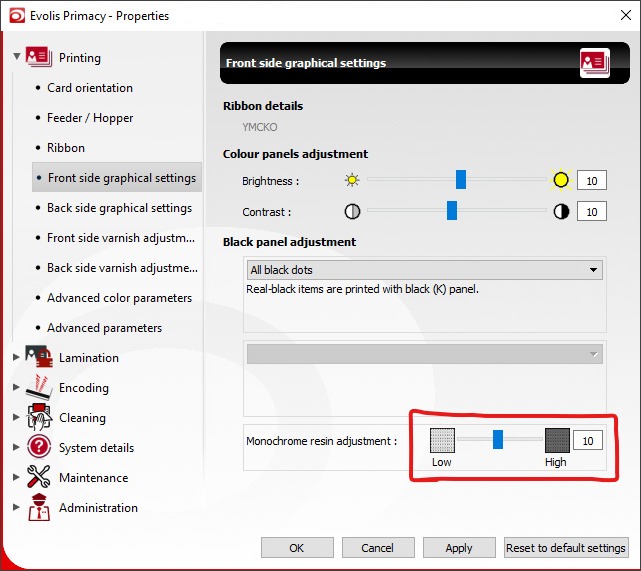 With this adjustment, you should see better results. However, if unsatisfied, you can slow down the printing speed depending on your design, printer location, software, the font used, room temperature, and environment.
Slowing Monochrome Printing Speed
- Open the Evolis Print Center, Double Click on the Evolis Zenius 1 or Evolis Primacy 1 printer.
- Click on Printing Tab.
- Click on Advanced parameters.
- Use the slider bar to decrease the Monochrome printing speed by steps of 2.
- Test printing.
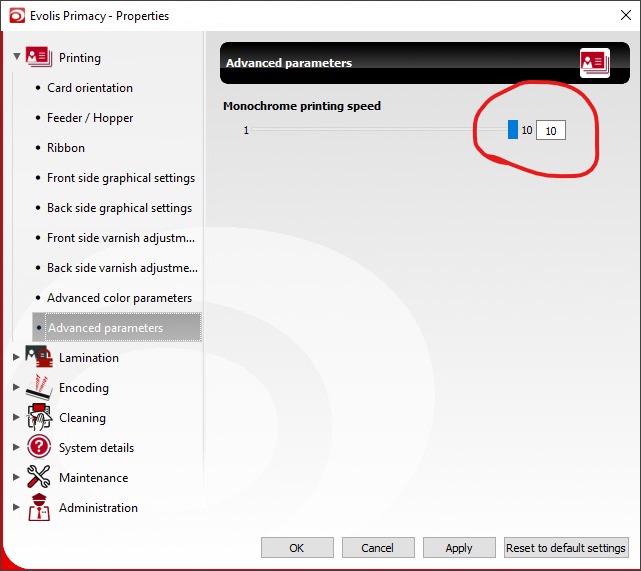

Please, make sure you have the latest version of the Firmware and Driver downloaded from the Evolis Support website and installed on your printer/computer.