
 1.866.458.6999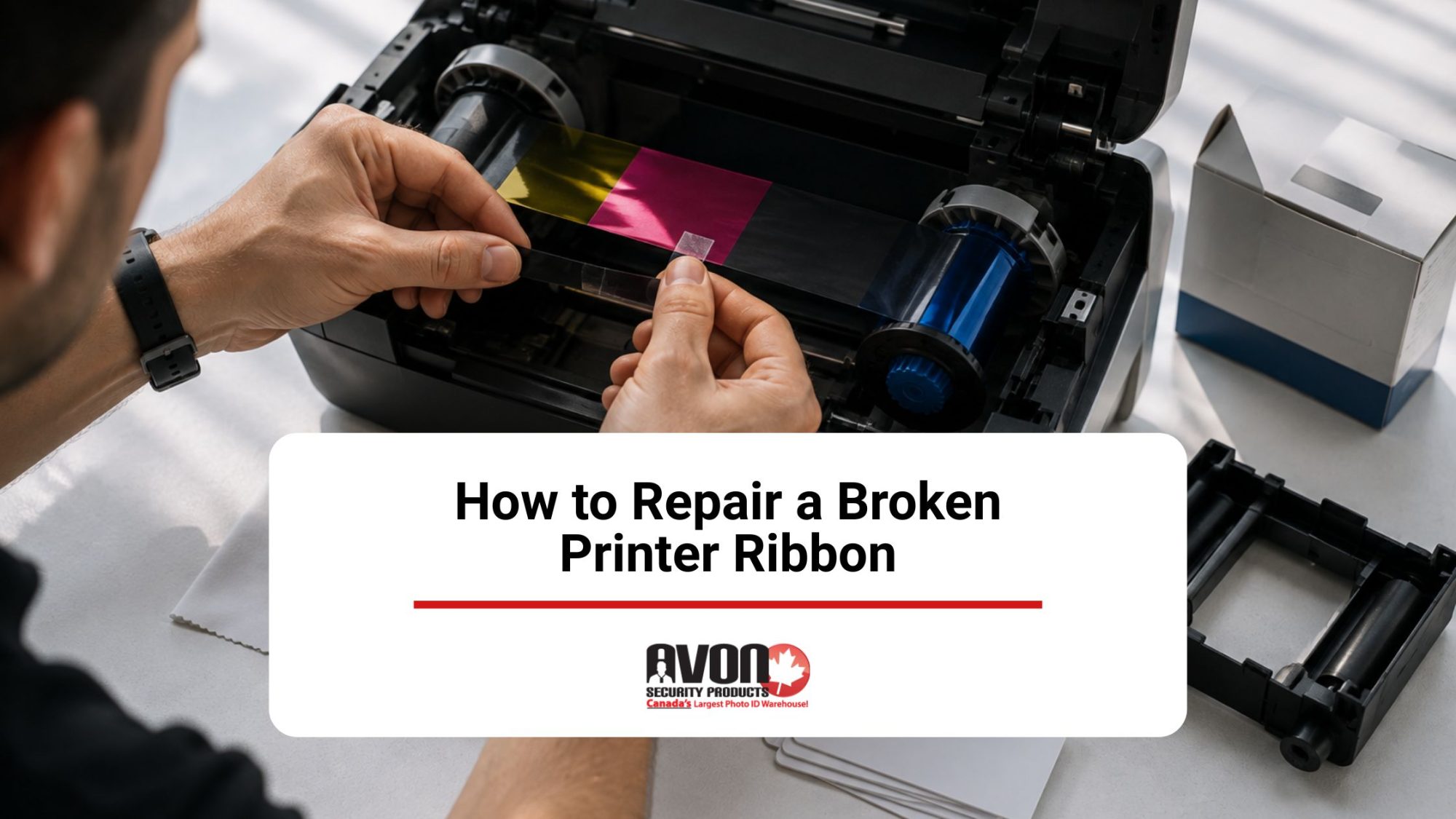
Key Takeaways
- A broken printer ribbon can often be repaired with transparent tape if the tear is clean and the ribbon is still usable.
- Pause the print job, remove the ribbon carefully, and inspect for tears, tangles, and ribbon misalignment.
- Check for printhead heat, sensor issues, and driver settings if breaks keep happening.
- Dust, debris, and poor card alignment can damage ID card printer ribbons and cause print errors.
- Replace the ribbon if the damage is severe or the repair does not restore smooth printing.
In many cases, a broken printer ribbon can be repaired rather than immediately replaced. A clean break can usually be trimmed and carefully rejoined with transparent tape, then wound forward so the repaired section sits securely on the used-ribbon spool. This restores the ribbon’s tension and allows you to test whether it can move smoothly through the printer again.
It’s equally important to understand why the ribbon broke. A ribbon that catches, wrinkles, or runs unevenly through the printer can eventually tear, while dust or debris inside the card path can interfere with its movement. If breakage continues after a repair, the cause may be excessive printhead heat, incorrect printer settings, printer movement issues, or a sensor that is no longer reading the ribbon correctly. Finding the underlying issue helps prevent another break and determines whether the printer ribbon can remain in use or should be replaced. Fortunately, repairing a broken printer ribbon does not require advanced technical know-how or any other kind of special skill set. It is something anyone can do. See our steps below.
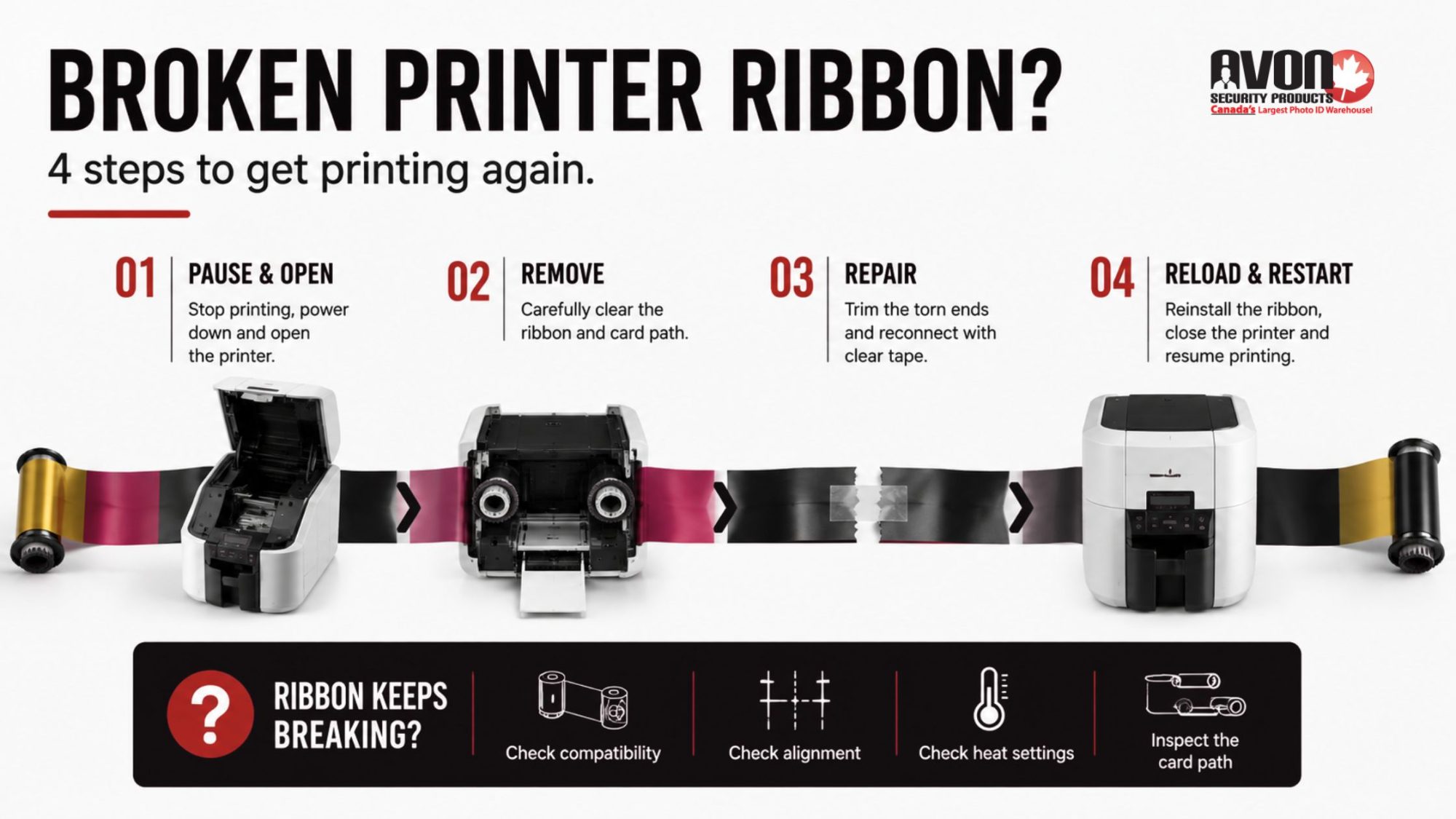
Step 1: Getting To The Broken Printer Ribbon
If your printer ribbon has broken, first you need to pause the current print job immediately if jobs are pending in your printer queue. Deleting them is not necessary. Next, turn off your printer, open it up and unlatch the print head.
Step 2: Removing It
Next, you need to remove the ribbon cartridge or supply on the right side, and then on the left side you need to take up the spools. When taking out the spools, it is crucial that you know which spool is which. Then you should take the ribbon out from the platen roller. If the ribbon is stuck onto the card, you need to take the extra ribbon out of the card path’s way. At this point, there should no longer be any cards or ribbon in the printer’s card path.
Step 3: Repairing
For our third step, find a flat surface for your cartridge. Make sure it is clean first. Then, find the two ends for the take-up and supply spools. You also want to make sure the two ends are as straight as possible, so it’s best to cut away any excess ribbon.
Now you are ready to start the repairs. Pull the tape at each end until they overlap. Then all you need to do is tape them together with Scotch tape. It really is that simple! If you find that there is a bit of used ribbon on the take-up, taping directly over the used ribbon won’t cause any problems.
Step 4: Restarting Your Job
It’s finally time for you to get back to your print job. Put your printer ribbon back inside the printer and don’t worry about the colour position. The printer can automatically put the ribbon in the right position after you have inserted it. Then, close the printer properly by latching the printhead down and shutting the cover. Turn the printer back on, and everything should be good to go. Your job should restart automatically.
Troubleshooting ID Card Printer Errors
If your printer ribbon continues to break, the problem may be related to ribbon compatibility, the printer itself, or the cards being used. Checking your printer model and ribbon specifications with Avon Security Products can help rule out an incompatible ribbon before you troubleshoot the printer. Here are the most common issues to check:
Restore Driver Settings
Sometimes, if the default settings have been changed, the ribbon can get too hot, and this can lead to it breaking. Restoring the print driver to its original settings can do the trick.
Examine Blank Cards for Any Kind of Debris
Sometimes, when pre-punching your cards before you print them, debris can enter the punch hole and tear the ribbon. In general, it’s best to print over your cards and then punch them.
Don’t Print Too Close to the Card’s Edge
When printing on ID cards, make sure you have a good ID card layout established and ensure the card is aligned properly to avoid printing on the edge of the card. Printing on the edge of your card with a direct-to-card printer can cause the ribbon to snap. The way to avoid this is to modify the unprinted border in your ID card software.
Incorrect Ribbon Compatibility
Incompatible ribbon can contribute to tearing or breakage. A ribbon that is not designed for your specific ID card printer may not feed or maintain tension correctly, which can cause wrinkling, misalignment, or excessive stress as it moves through the printer.
Clean Your Printer
Using a cleaning set designed for your model, you can clean your printer to help prevent printer ribbons from breaking. You also need to recalibrate the ribbon sensor afterwards, and double-check that the ribbon type you are using is compatible with your printer.
Keep Ribbon Problems from Interrupting Your Print Jobs
A clean ribbon tear may be an easy repair, but repeated breakage can indicate a problem with ribbon alignment, printhead temperature, calibration, or the card path. Continuing to replace ribbons without addressing the cause can mean more wasted supplies and interrupted print jobs. Contact us at Avon Security Products for help troubleshooting your ID card printer, confirming ribbon compatibility, or determining whether replacement supplies or printer service are needed.
FAQs
Can every broken ID printer ribbon be repaired?
A clean break can often be repaired temporarily by aligning the ribbon ends and joining them with transparent tape. Trim ragged or damaged portions with scissors first, then press the tape firmly across one side without creating folds. Keep the repaired section taut and even as it winds onto the used-ribbon spool. The repaired area should be covered by another layer of ribbon where possible. Replace the ribbon instead if it has multiple tears, severe tangles, or extensive damaged portions.
How do I access a broken ribbon safely?
Pause the printer queue, switch off the printer, and follow the user manual before opening the ribbon compartment. Unlatch the print head and carefully remove the ribbon cartridge or supply spool. Identify the take-up spools before lifting them out, then free the ribbon from the platen roller and card path. Remove any loose film or debris, but do not force a stuck component or touch the printhead unnecessarily. The exact access method may vary by printer model.
What should I check when assessing ribbon damage?
Inspect both ribbon ends for clean tears, fraying, creases, and excess ribbon. Check whether the film is twisted, whether the take-up spool is winding evenly, and whether the ribbon follows the correct ribbon path. Repeated breaks may indicate misalignment, a worn component, incorrect heat settings, or ribbon sensors that need calibration. If the film is badly torn or contaminated, replacement is usually more reliable than repair. Consult the user manual for model-specific inspection and ribbon calibration steps.
Can debris on blank cards cause ribbon breakage?
Yes. Debris on blank cards, including particles left after pre-punching, can obstruct the card path or contact the ribbon and cause tears. Examine cards before loading them and remove damaged or contaminated stock. Avon recommends printing before punching cards when possible, because pre-punching can allow debris into the openings. If the issue continues, test a fresh pack of compatible cards and clean the printer according to the manufacturer’s instructions. This may help prevent repeated ribbon breakage.
How does printer alignment affect a ribbon?
Poor alignment can pull the ribbon unevenly, create wrinkles, or move it toward the card edge, increasing the risk of breakage. Check that the cartridge, take-up spool, and ribbon path are seated correctly before closing the printer. With a direct-to-card printer, leave an appropriate unprinted border rather than attempting edge-to-edge printing. An alignment test card and the printer’s top of form setting can help identify positioning problems. Follow your model’s user manual for exact alignment adjustments.
When should I replace a ribbon instead of repairing it?
Replace the ribbon when it has repeated tears, severe creasing, melted areas, extensive tangles, or too little usable film remaining. Choose a compatible ribbon cartridge made for your exact printer model and confirm its capacity and colour configuration. Before installing it, remove debris from the card path, check the ribbon sensor, and review heat settings and driver settings. Do not cut the ribbon or attempt a repair simply to avoid replacement when the damaged film could affect printing or harm the printer.
Can incorrect driver settings make a ribbon overheat?
They can. Settings that increase ink output or printhead power may raise the temperature of your print head and contribute to ribbon overheating or ribbon breakage. Restore driver settings to their default settings or original settings, then print a test card before making further changes. If you use a Zebra ZXP Series 7, Avon also recommends checking for current drivers and firmware and adjusting print head power when appropriate. Use model-specific guidance rather than guessing at heat settings.avonsecurityproducts+1
How often should I clean an ID card printer?
Follow the cleaning schedule and maintenance schedules specified by your printer manufacturer. Many card printers should be cleaned whenever a new ribbon is installed, while heavily used equipment may require more frequent attention. Use cleaning kits designed for the model to remove debris from the printhead, rollers, and ribbon path. After cleaning, perform recalibration or recalibrate the ribbon sensor if your printer requires it. Never use improvised solvents or tools that could scratch the printhead or contaminate the card path.
What should I do after installing a repaired or new ribbon?
Reinstall the cartridge or spools with the ribbon routed correctly and wound taut and even. Secure the printhead, close the cover, and restart the printer. If required by your model, calibrate the ribbon sensor before sending a job. Confirm that the print driver and printer’s properties still use the original settings, then run a test print. Check the printhead and ribbon path if the result is incomplete, misaligned, or the ribbon does not advance normally after installation.
Why does a ribbon keep breaking after a repair?
A repair addresses the tear but may not correct the underlying cause. Persistent issues can result from debris, incorrect alignment, edge printing, unsuitable cards, excessive printhead heat, outdated firmware, or a faulty ribbon sensor. Check the card stock, clean the printer, verify the ribbon path, restore driver settings, and recalibrate the ribbon sensor where applicable. If ribbon breakage continues after these steps, stop repeated repairs and contact Avon Security Products for professional assistance and technical support.
Are generic ribbons suitable for Avon-supplied ID printers?
Compatibility depends on the printer model, ribbon format, and manufacturer specifications. Avon advises using genuine manufacturer ribbons because the wrong supply can cause malfunction or poor print quality. Before ordering, confirm the printer brand and model, required colour panel configuration, print capacity, and whether the supply is a cartridge or spool format. Avon’s ribbon and supply offerings include products for brands such as Zebra, Fargo, Evolis, Magicard, and Entrust. Contact Avon’s support team if you are unsure which ribbon is compatible.avonsecurityproducts+1
When should I contact technical support about ribbon breakage?
Contact technical support when the ribbon breaks repeatedly, the printer reports a sensor error, the printhead appears damaged, or a repaired ribbon will not calibrate or advance. Provide the printer model, ribbon part number, card type, error message, and a description of recent changes to driver settings or firmware. Avon’s support contact can help determine whether professional assistance, a compatible replacement ribbon, or printer service is appropriate. Avoid continuing to operate the printer if the ribbon path or printhead may be damaged.